How to troubleshoot Hyper-V cluster issues
You need to check the operational health of a Hyper-V server or Hyper-V cluster. You need to perform a technical audit of the Hyper-V operations to determine the root cause of slow performance issues or cluster errors. This article provides high-level guidance on how to troubleshoot Hyper-V cluster issues.
Solution
Section titled “Solution”Carry out the steps below to troubleshoot Hyper-V cluster issues:
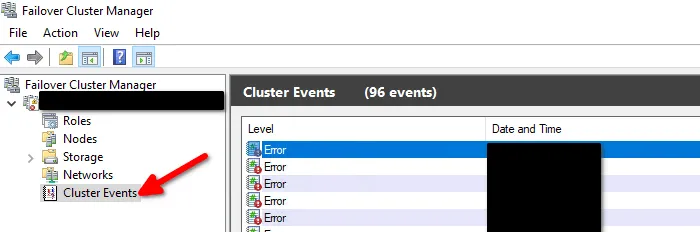
- Check all Hyper-V cluster logs. You can either use Powershell or the Windows Failover Cluster mmc console.
-
Investigate all operating system event logs on the machines running the Hyper-V server role.
-
Check all Hyper-V host hardware vendor’s logs and overall health status in the out-of-band management console (IPMI).
-
In the case of a Hyper-V cluster, run the Microsoft Hyper-V best practices analyzer. The Best Practices Analyzer scans your computer using rules based on Microsoft Hyper-V WFC best practices and reports the results. Each best practice rule includes details about how to comply with the rule. To run the Best Practices Analyzer for Hyper-V on Windows server, execute the following cmdlets in an elevated Powershell window.
#First detect the name of the BPA model ID(s) you are interested to run a scan for.Get-BPAModel#Pipe the modelID into the Invoke cmdlet.Get-BPAModel -ModelID [ModelID] | Invoke-BPAModel#Get the BPA results for your model ID(s)Get-BpaResult -ModelId "Microsoft/Windows/Hyper-V" | Out-File -FilePath C:\Scripts\HyperV-BPA.txt-
Audit the status of all associated networking devices (firewall, router, switch) and storage devices (SAN, NAS).
-
Examine all software-defined features you have configured in your Hyper-V cluster environment. These include VMQ, RDMA, RSS, SET and SRV-IO.
-
Create a Hyper-V health report, which is created by a free Powershell script provided by Altaro.
-
For performance issues, review the recommendations in the free Hyper-V performance e-book provided by Altaro.
-
You can make use of additional Hyper-V cluster management and troubleshooting tools, a list of which is provided by Altaro.
-
Follow along the Altaro Hyper-V networking best practices article.
-
Altaro also provides the free Hyper-V first aid kit book available for download at: Altaro eBook: Hyper-V First Aid Kit.
For a more comprehensive troubleshooting approach when dealing with Windows Failover Cluster (WFC) issues, including failover clusters with Hyper-V, you can refer to my e-book entitled “Windows Failover Clustering Design Handbook”. Remember that in all cases, it is better to spend time planning for a proper best practice design, instead of spending time troubleshooting Windows Failover Clustering issues.