How to manage disk storage in Linux
You have a Linux distribution, for example Ubuntu Linux, and you need to run commands to manage the allocated disk space as well as to check partitions and mount points.
This article provides guidance on how to manage disk space in Linux.
Solution
Section titled “Solution”Manage disks, partitions and mounts
Section titled “Manage disks, partitions and mounts”You should run the following Linux commands to manage allocated disk space and to check partitions and mount points.
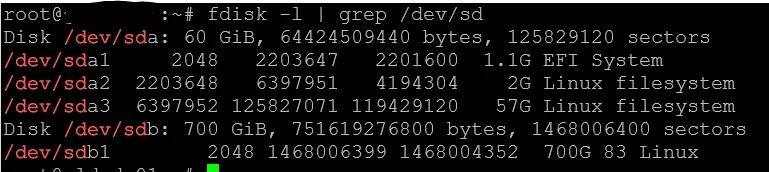
#The below command shows all available disks and partitionsfdisk -lfdisk -l | grep /dev/sd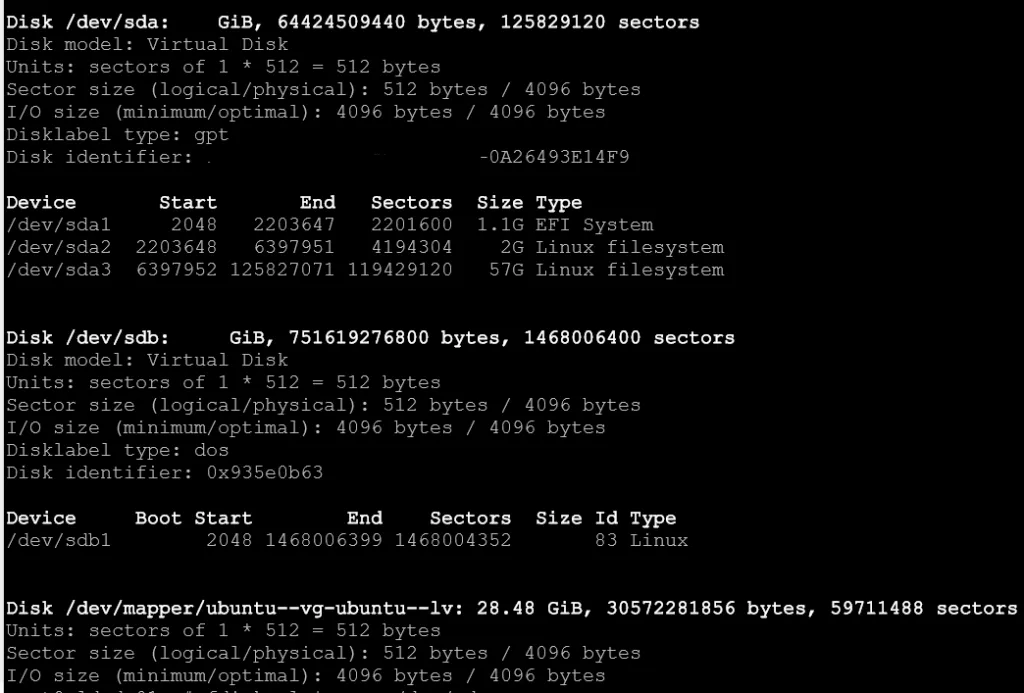
#The below command shows a summary of the allocated disk space to all partitionsdf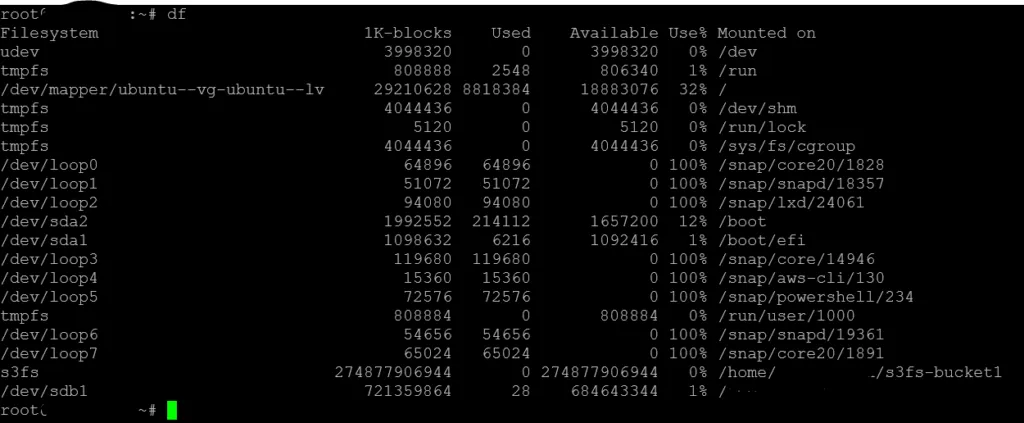
#The below df commanddf -H /dev/sda
#The below command is similar to df but uses a graphical tabular interface for better readabilityduf -all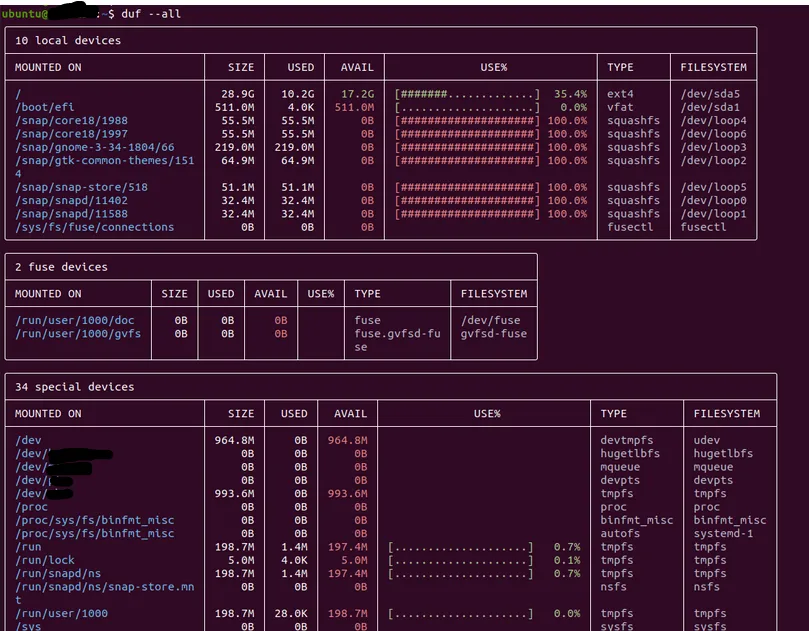
#The below command lists block storage deviceslsblk
#Also command lsusb lists the usb interface devices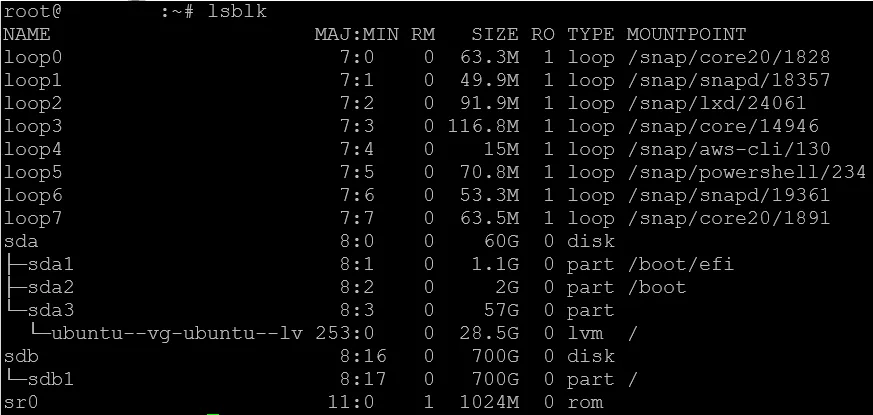
#The below command provides a tabular output for all disks and partitionscfdisk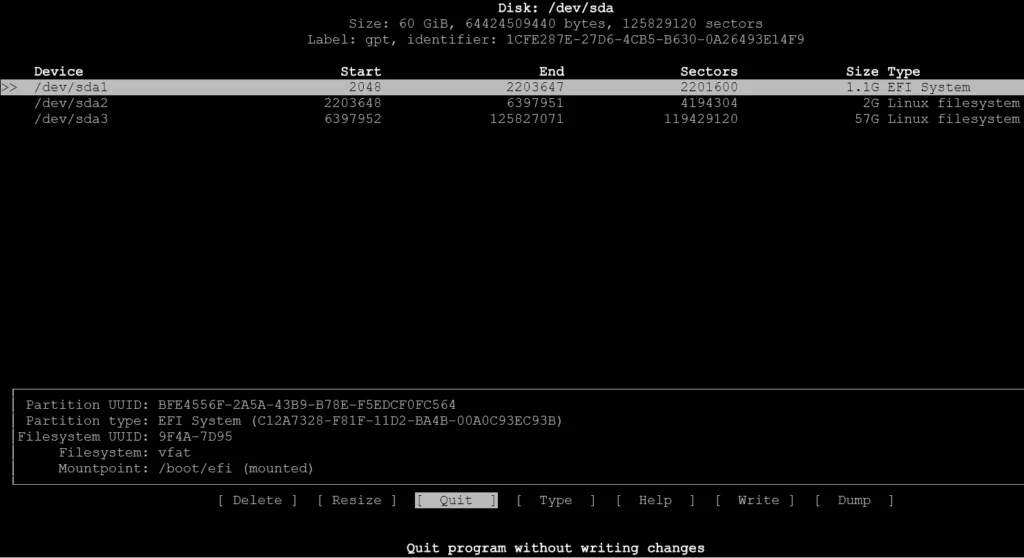
#You can check various configuration files to query information about disks and partitionscat /proc/partitionscat /etc/fstabcat /etc/fstab.dcat /etc/mtabcat /proc/self/mountinfo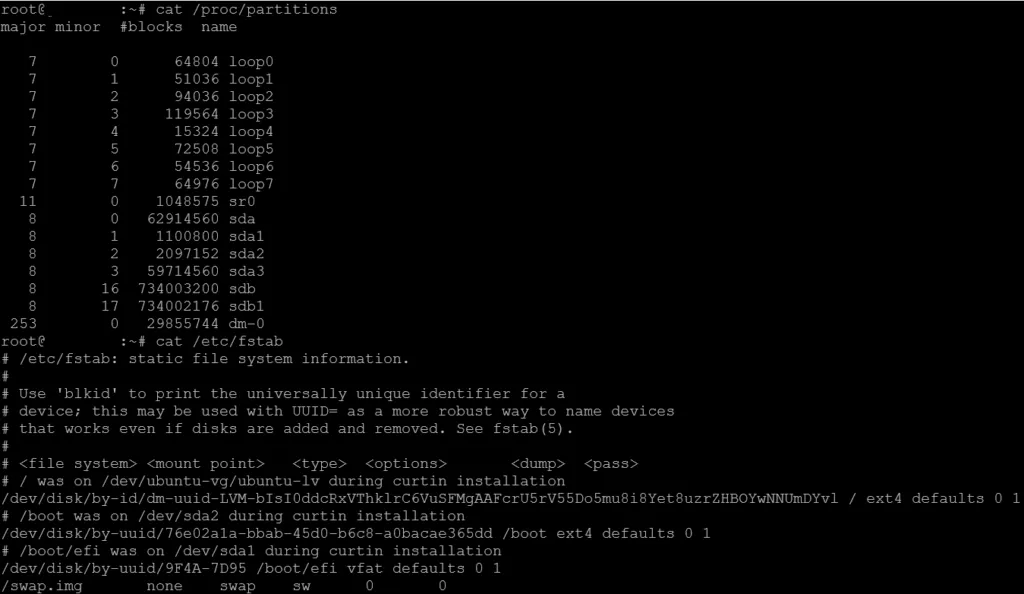
#The tree command displays the hierarchical folder structure either from / or from another directorytree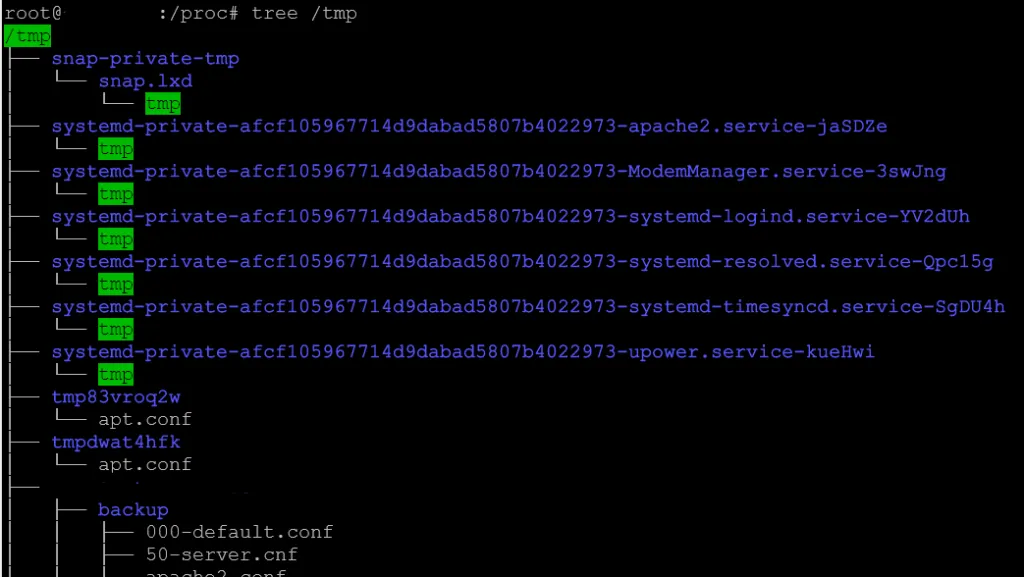
#The gparted command is the graphical interface to parted#The GNU partition management toolparted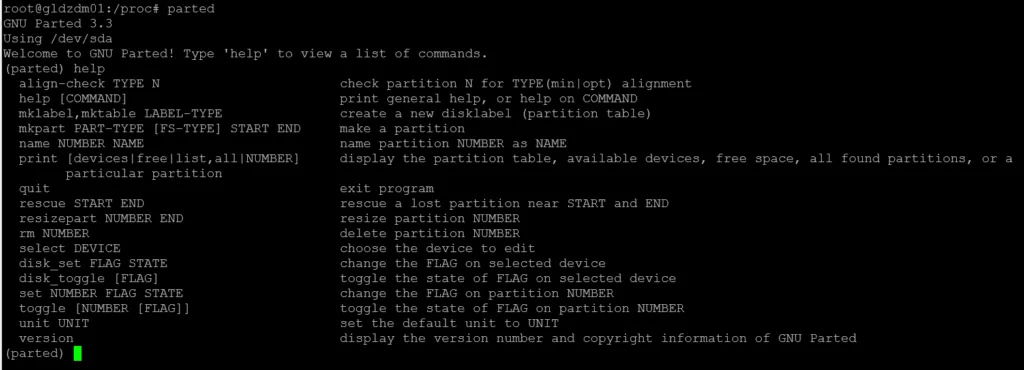
# The below command displays a tabular list of mounts and can be used with grep to narrow down resultsfindmnt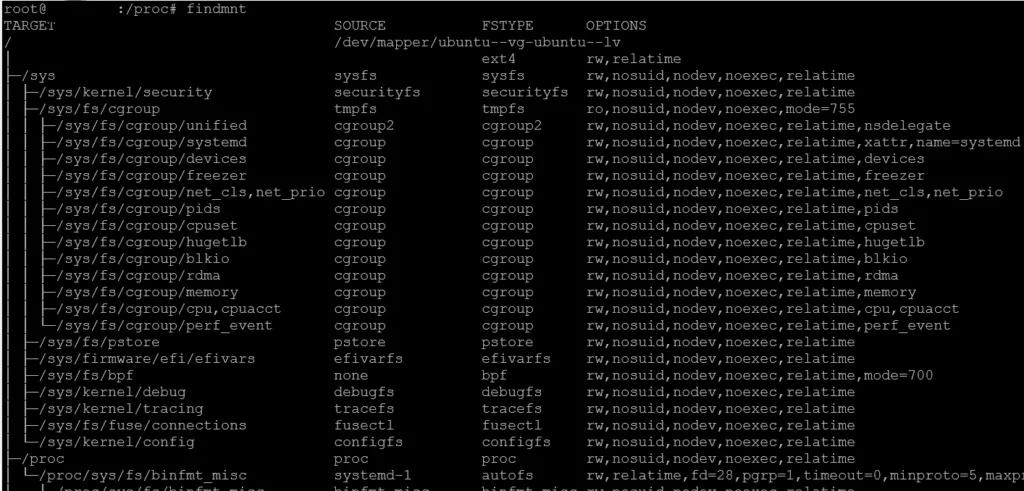
#Similar to findmnt, the mount command provides a list of all mountsmount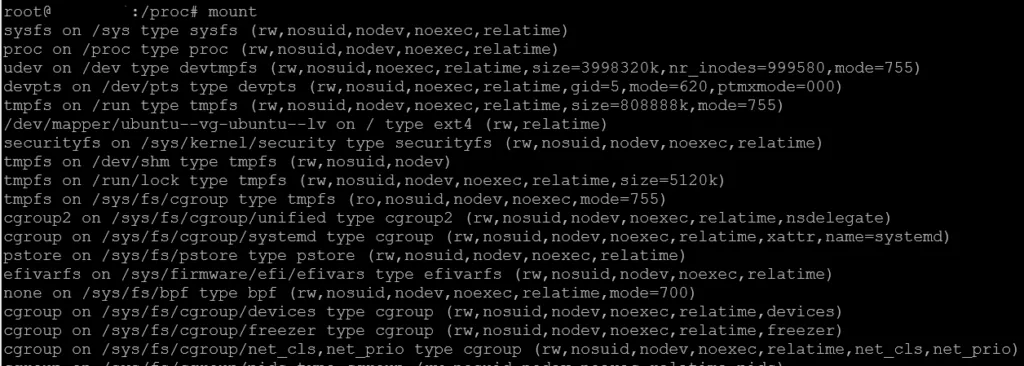
Format and mount disks
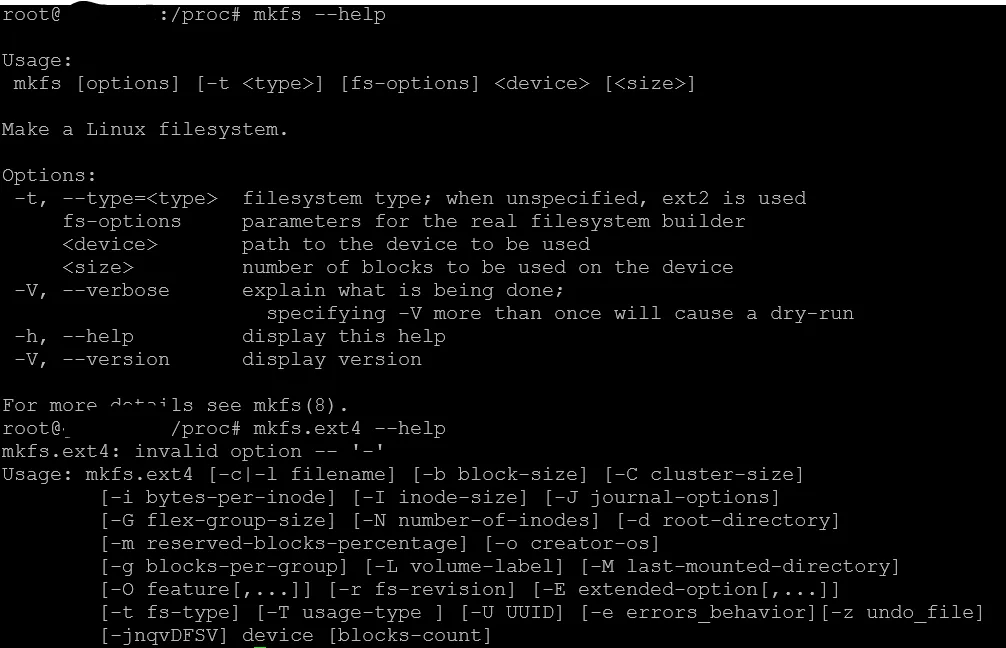
Section titled “Format and mount disks”To format an attached disk from the Linux command line run the following command.
# Format disk /dev/sdb to create partitionsfdisk /dev/sdb# For above command choose default options and click w to exit the fdisk command# Now format the file system inside the created partitionmkfs.ext4 -L [label] /dev/sdb1#Now mount the newly formatted partition to a mount point (mount point folder must already exist)mount /dev/sdb1 /mymountpoint