How to install the Windows Subsystem for Linux (WSL) in Windows
Overview
Section titled “Overview”The Windows Subsystem for Linux lets developers run a GNU/Linux environment – including most command-line tools, utilities, and applications – directly on Windows, unmodified, without the overhead of a virtual machine.
You can:
-
Choose your favorite GNU/Linux distributions from the Microsoft Store.
-
Run common command-line free software such as
grep,sed,awk, or other ELF-64 binaries. -
Run Bash shell scripts and GNU/Linux command-line applications including:
-
Tools: vim, emacs, tmux
-
Languages: Javascript/node.js, Ruby, Python, C/C++, C# & F#, Rust, Go, etc.
-
Services: sshd, MySQL, Apache, lighttpd
-
-
Install additional software using own GNU/Linux distribution package manager.
-
Invoke Windows applications using a Unix-like command-line shell.
-
Invoke GNU/Linux applications on Windows.
Installation how-to
Section titled “Installation how-to”Before installing any Linux distros for WSL, you must ensure that the “Windows Subsystem for Linux” optional feature is enabled:
- Open PowerShell as Administrator and run: PowerShell
Enable-WindowsOptionalFeature -Online -FeatureName Microsoft-Windows-Subsystem-LinuxRestart your computer when prompted.
To download and install your preferred distro(s), you have three choices:
Download and install from the Microsoft Store
Section titled “Download and install from the Microsoft Store”-
Open the Microsoft Store and choose your favorite Linux distribution.
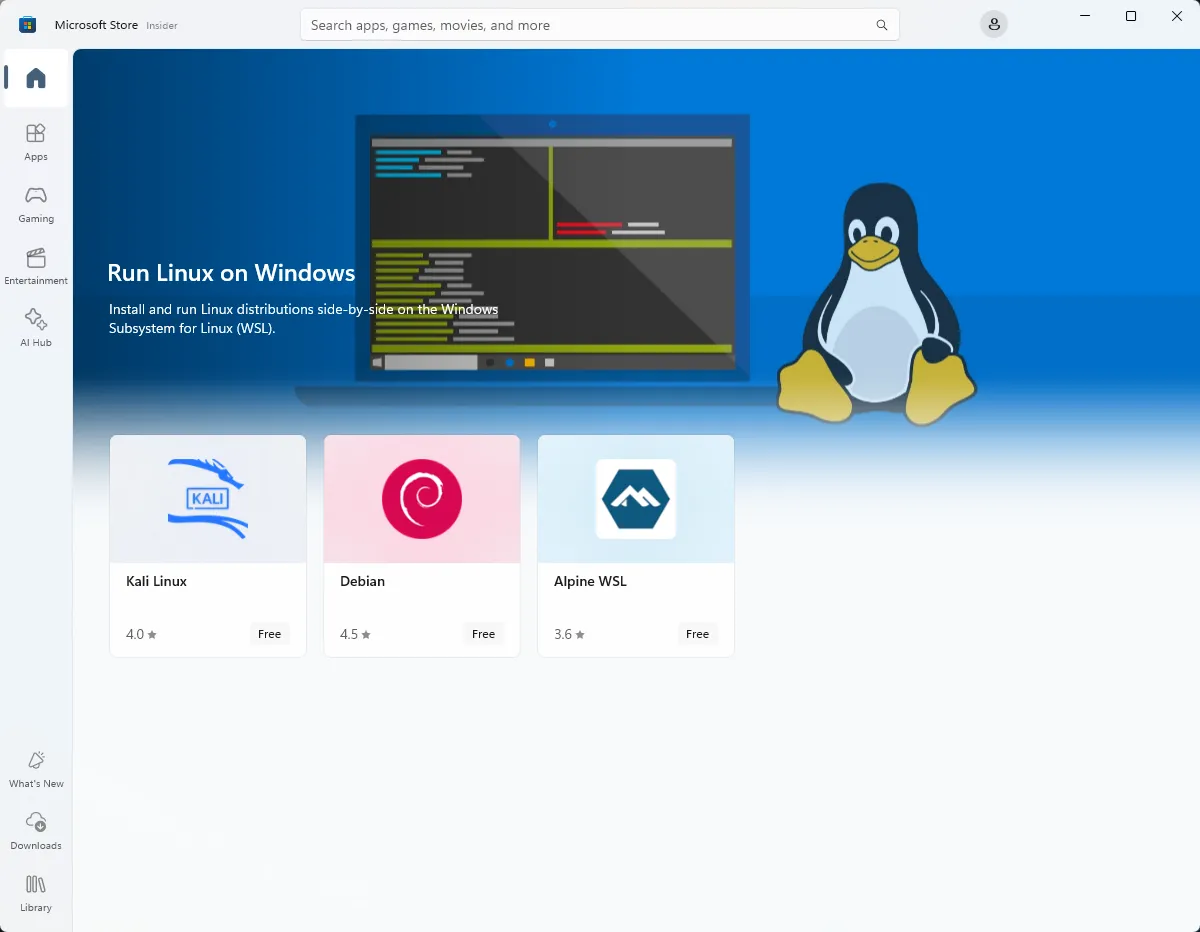 The following links will open the Microsoft store page for each distribution:
 -
From the distro’s page, select “Get”
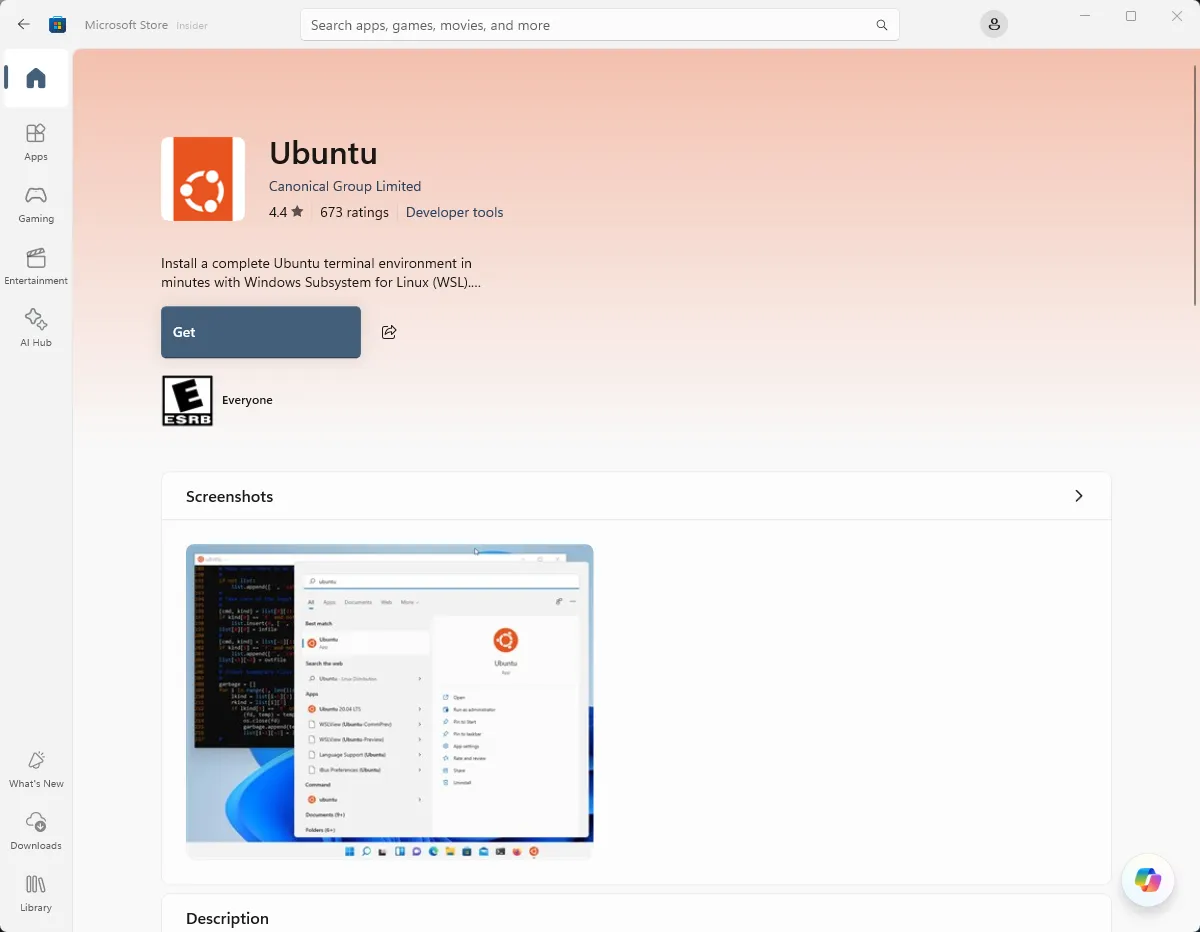
Now that your Linux distro is installed, you must initialize your new distro instance once, before it can be used.
Download and install from the Command-Line/Script (read the manual installation instructions)
Section titled “Download and install from the Command-Line/Script (read the manual installation instructions)”The basic commands to run in Windows CLI for WSL installation are the following.
#Show a list of available Linux distributions for WSLwsl --list --online#Install your preferred Linux distro, e.g. Ubuntuwsl --install -d Ubuntu#Access the Windows C drive from the Linux terminal inside WSLexplorer.exe .cd /mnt/c#Run apt install or your Linux distro package manager to install and run appssudo apt install [appname]chmod +x./[appnamerun]