How to connect to Exchange Online mailboxes from any endpoint
You need Exchange Online mailbox connection details to setup your endpoint (email client), for example a desktop PC, a mobile client or another device (printer, scanner) or application (Web App, mobile app, Windows Forms app, API) to authenticate to an Exchange Online mailbox and you need the Microsoft 365 server connection details.
Solution
Section titled “Solution”The connection details depend on whether your email client (endpoint) uses the Exchange Online MAPI protocol or IMAP/POP as well as whether is supports TLS v1.2 or later.
MAPI desktop and mobile clients
Section titled “MAPI desktop and mobile clients”MAPI clients include, but are not limited to, the Microsoft Outlook desktop client for Windows and MacOSX, Outlook mobile for iOS, Android and Windows Phone and other email clients.
-
For mobile mail clients, use step-by-step instructions at: https://support.microsoft.com/en-us/office/set-up-office-apps-and-email-on-a-mobile-device-7dabb6cb-0046-40b6-81fe-767e0b1f014f and https://support.microsoft.com/en-us/office/set-up-devices-for-office-365-7fb4b75b-b939-4241-bc84-6bd9b90a7a64.
-
For Outlook desktop clients, use step-by-step instructions at: https://support.microsoft.com/en-us/office/add-an-email-account-to-outlook-6e27792a-9267-4aa4-8bb6-c84ef146101b.
Devices and applications acting as MAPI clients
Section titled “Devices and applications acting as MAPI clients”For another device, such as printer, scanner or other third-party appliance or application, follow step-by-step instructions at: https://docs.microsoft.com/en-us/exchange/mail-flow-best-practices/how-to-set-up-a-multifunction-device-or-application-to-send-email-using-microsoft-365-or-office-365.
There are generally three methods for sending out emails via your Microsoft 365 tenant, as explained in the below sections.
Option 1: SMTP AUTH client submission method
Section titled “Option 1: SMTP AUTH client submission method”| Device or Application setting | Value |
|---|---|
| Server/smart host | smtp.office365.com |
| Port | Port 587 (recommended) or port 25 |
| TLS/StartTLS | Enabled |
| Username/email address and password | Enter the sign in credentials of the hosted mailbox being used |
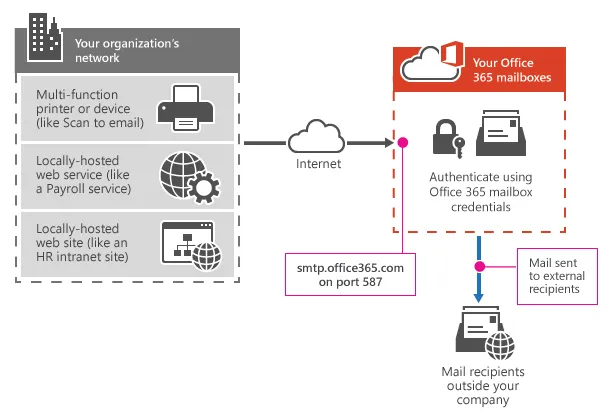
Option 1: SMTP Auth Client submission method
Note:
In some cases you may need to also check the SmtpClientAuthenticationDisabled property of your Exchange Online organization. If it is set to True, you will need to set it to false, otherwise the SMTP Auth Client submission method will not work, especially in cases where POP/IMAP are being used. you can check the value of the SmtpClientAuthenticationDisabled property by running the following cmdlet:
Get-TransportConfig | Select SmtpClientAuthenticationDisabled#Set it to false if it was set to trueSet-TransportConfig -SmtpClientAuthenticationDisabled $false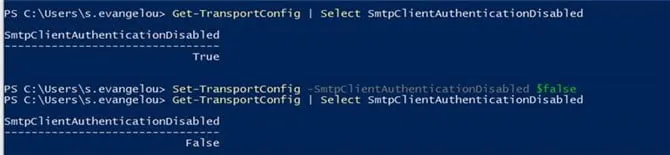
Option 2: Direct send method
Section titled “Option 2: Direct send method”For direct send, use the following connection details.
| Device or application setting | Value |
|---|---|
| Server/smart host | Your MX endpoint, for example, contoso-com.mail.protection.outlook.com |
| Port | Port 25 |
| TLS/StartTLS | Enabled |
| Email address | Any email address for one of your Microsoft 365 or Office 365 accepted domains. This email address does not need to have a mailbox. |
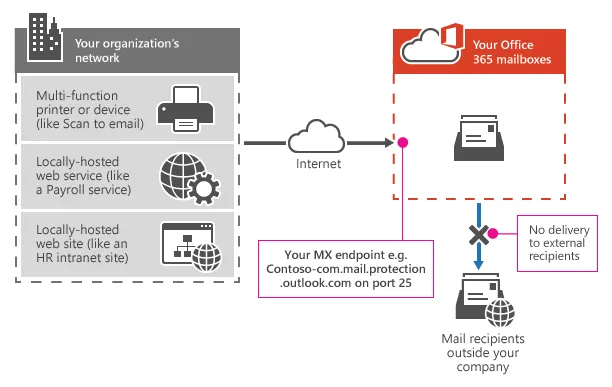
Option 2: Direct send method
Option 3: Microsoft 365 SMTP Relay method
Section titled “Option 3: Microsoft 365 SMTP Relay method”Use this method when you cannot use methods 1 or 2 above or when your environment is making use of security defaults or MFA.
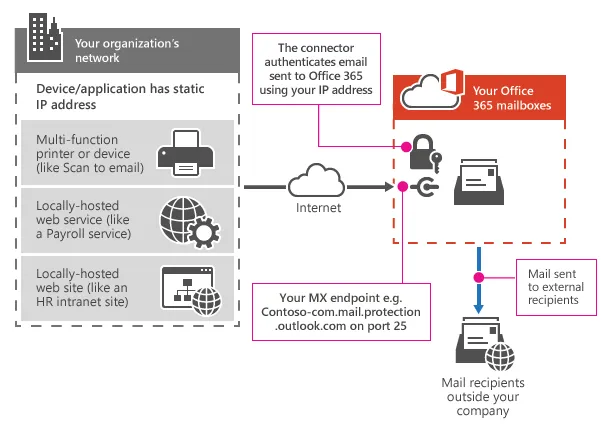
Option 3: Microsoft 365 SMTP relay
Choosing the correct device/application MAPI connection method
Section titled “Choosing the correct device/application MAPI connection method”In order to decide which of the above options are suitable for your device or application, you should first consider the following design factors:
-
Does your Microsoft 365 tenant use Microsoft Security Defaults or multi-factor authentication (MFA)?
-
Does your device or application support TLS v1.2 or later or not?
-
Make sure to thoroughly review MS article at https://docs.microsoft.com/en-us/exchange/mail-flow-best-practices/how-to-set-up-a-multifunction-device-or-application-to-send-email-using-microsoft-365-or-office-365 for all requirements to fulfill before implementing any of the options above.
IMAP/POP clients
Section titled “IMAP/POP clients”After you enable POP3 and IMAP4 client access, you have to give users the information in the following table so that they can connect their email programs to their Exchange Online mailboxes. POP3 and IMAP4 email programs don’t use POP3 and IMAP4 to send messages to the email server. Email programs that use POP3 and IMAP4 rely on SMTP to send messages.
| Protocol | Server name | Port | Encryption method |
|---|---|---|---|
| POP3 | Outlook.office365.com | 995 | SSL/TLS |
| IMAP4 | Outlook.office365.com | 993 | SSL/TLS |
| SMTP | Smtp.office365.com | 587 | STARTTLS |
Additional steps
Section titled “Additional steps”Bear in mind that in all cases, Office 365 requires connectivity to the Internet. The endpoints listed in the following article should be reachable for customers using Office 365 plans: https://docs.microsoft.com/en-us/microsoft-365/enterprise/urls-and-ip-address-ranges?view=o365-worldwide. It is also a good idea to make use of the Microsoft 365 network connectivity test tool. When you run this test, it measures the connectivity between your device and the internet, and from there to Microsoft’s network.