How to burn a bootable iso image to USB disk
You need to burn a bootable iso image to USB disk. This how-to article provides options for burning a bootable iso image to USB disk in both Windows and Linux operating systems.
Solution
Section titled “Solution”Windows
Section titled “Windows”Use Rufus
Section titled “Use Rufus”Use Rufus to burn any iso in the Windows operating system. Rufus is availble for download from https://rufus.ie/en/.
Use Balena Etcher
Section titled “Use Balena Etcher”https://github.com/balena-io/etcher/blob/master/docs/USER-DOCUMENTATION.md#why-is-my-drive-not-bootable. Electron GUI is built by using the Electron JS framework (https://www.electronjs.org/).
To install Etcher in Ubuntu Linux run the following commands:
curl -1sLf \   'https://dl.cloudsmith.io/public/balena/etcher/setup.deb.sh' \   | sudo -E bashsudo apt-get updatesudo apt-get install balena-etcher-electron
# How to uninstallsudo apt-get remove balena-etcher-electronrm /etc/apt/sources.list.d/balena-etcher.listapt-get cleanrm -rf /var/lib/apt/lists/*apt-get update
Balena Etcher is also available as a Linux AppImage at https://appimage.github.io/Etcher/.
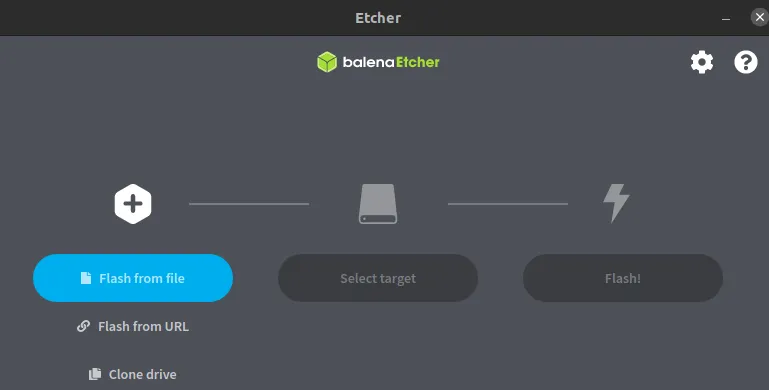
As per the above Balena Etcher documentation, Etcher copies images to drives byte by byte, without doing any transformation to the final device, which means images that require special treatment to be made bootable, such as various Windows 10 images, will not work out of the box. To mitigate this limitation, you must use a tool which natively supports Windows bootable images. One such great tool is WoeUSB-ng.
Use WoeUSB
Section titled “Use WoeUSB”WoeUSB is the original project.
-
woeusb: A command-line utility that enables you to create your own bootable Windows installation USB storage device from an existing Windows Installation disc or disk image
-
woeusbgui: Graphic version of woeusb
Firstly install the WoeUSB package dependencies as per following command in Ubuntu Linux:
sudo apt install \ bash \ dosfstools \ findutils \ grep \ gawk \ grub-common \ grub-pc-bin \ ntfs-3g \ p7zip-full \ parted \ util-linux \ wget \ wimtoolsWoeUSB is a program that can be run without installation(excluding its dependencies). Install WoeUSB by following below procedure.
-
Download the program(woeusb-N.N.N.bash) from the Releases page
-
Fix the missing executable file permission (
chmod +x path/to/woeusb-N.N.N.bash) -
Launch a terminal application and run the program via the appropriate path(
sudo path/to/woeusb-N.N.N.bash --help)
Alternative option is to use WoeUSB-ng, which is a fork of WoeUSB and is re-written in Python. To install WoeUSB on Ubuntu Linux, first install its pre-requisites and then the application itself with following commands.
sudo apt install git p7zip-full python3-pip python3-wxgtk4.0 grub2-common grub-pc-bin
sudo pip3 install WoeUSB-ng
You can now run the WoeUSB-ng GUI app and burn your Windows 10 ISO. Note that it takes a long time to install the GRUB loader (last step), so please be patient.
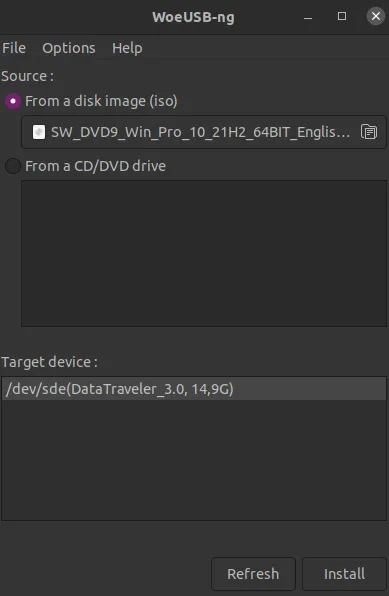
Your USB disk should now be bootable for Windows 10/11 installation.