Error cannot resolve the SSL Host name (SSL error 40) in Citrix Virtual Apps and Desktops
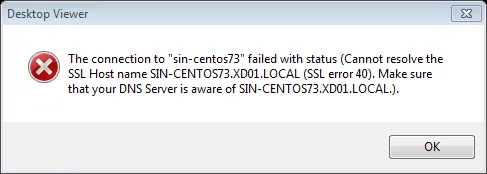
When trying to launch a Citrix Virtual App or Desktop you receive the following error message:
Error:“Cannot resolve the SSL Host name xxx.xxx.xxx (SSL error 40)”. An example occurrence of this error is shown in the screenshot below.
Solution
Section titled “Solution”This issue’s root cause is the end-user DNS resolver (client) not working properly. In most of the cases the issue is resolved with the following actions:
- Clear your browser cache. Step-by-step instructions for all major browsers can be found at: https://kinsta.com/knowledgebase/how-to-clear-browser-cache/.
- Flush your DNS resolver. In Windows systems run the following command in an elevated Windows terminal: ipconfig /flushdns. In Debian-based Linux systems first check if DNS caching is enabled by running following command: ps ax | grep dnsmasq. If the cache-size parameter is not zero then the DNS cache needs to be flushed. Depending on your DNS service you will need to run the appropriate commands.
For the latest Ubuntu distributions
#Ubuntu 20.04sudo systemd-resolve --flush-caches#Ubuntu 22.04resolvectl flush-caches#Alternative commands for cache flushsudo systemctl restart systemd-resolvedsudo killall -USR2 systemd-resolved#Check cache statistics, cache should now be zeroresolvectl statisticsFor Debian-based systems
sudo /etc/init.d/dns-clean restartsudo /etc/init.d/networking force-reloadFor nscd
sudo /etc/init.d/nscd restartsudo /etc/init.d/dnsmasq restartFor BIND
sudo /etc/init.d/named restartIf issue persists despite the Web browser cache reset and DNS flush, you may also want to manually set your hosts file on the end-user machine, in case the DNS service is having issues.
You can find more detailed guidance and step-by-step procedures for analyzing and troubleshooting Citrix Virtual Apps and Desktops organized by category in my Citrix Virtual Apps and Desktops Troubleshooting e-book.